
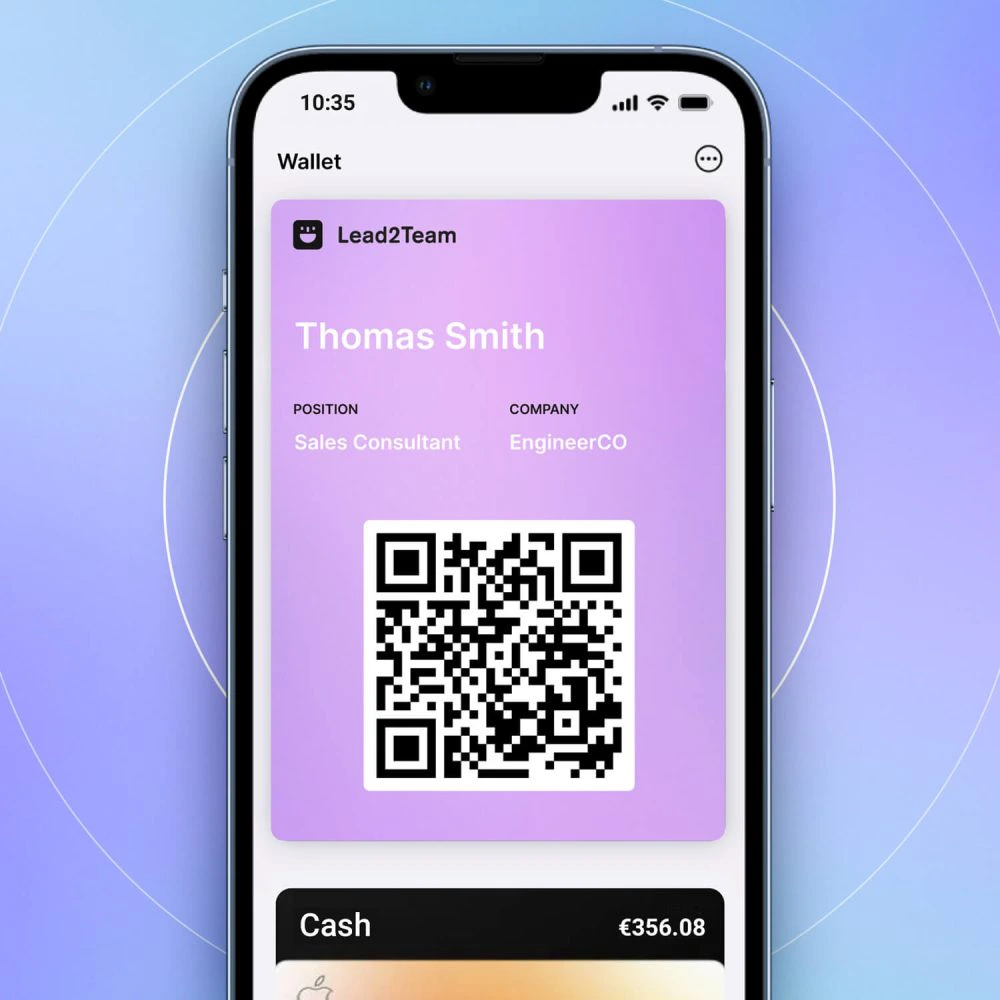
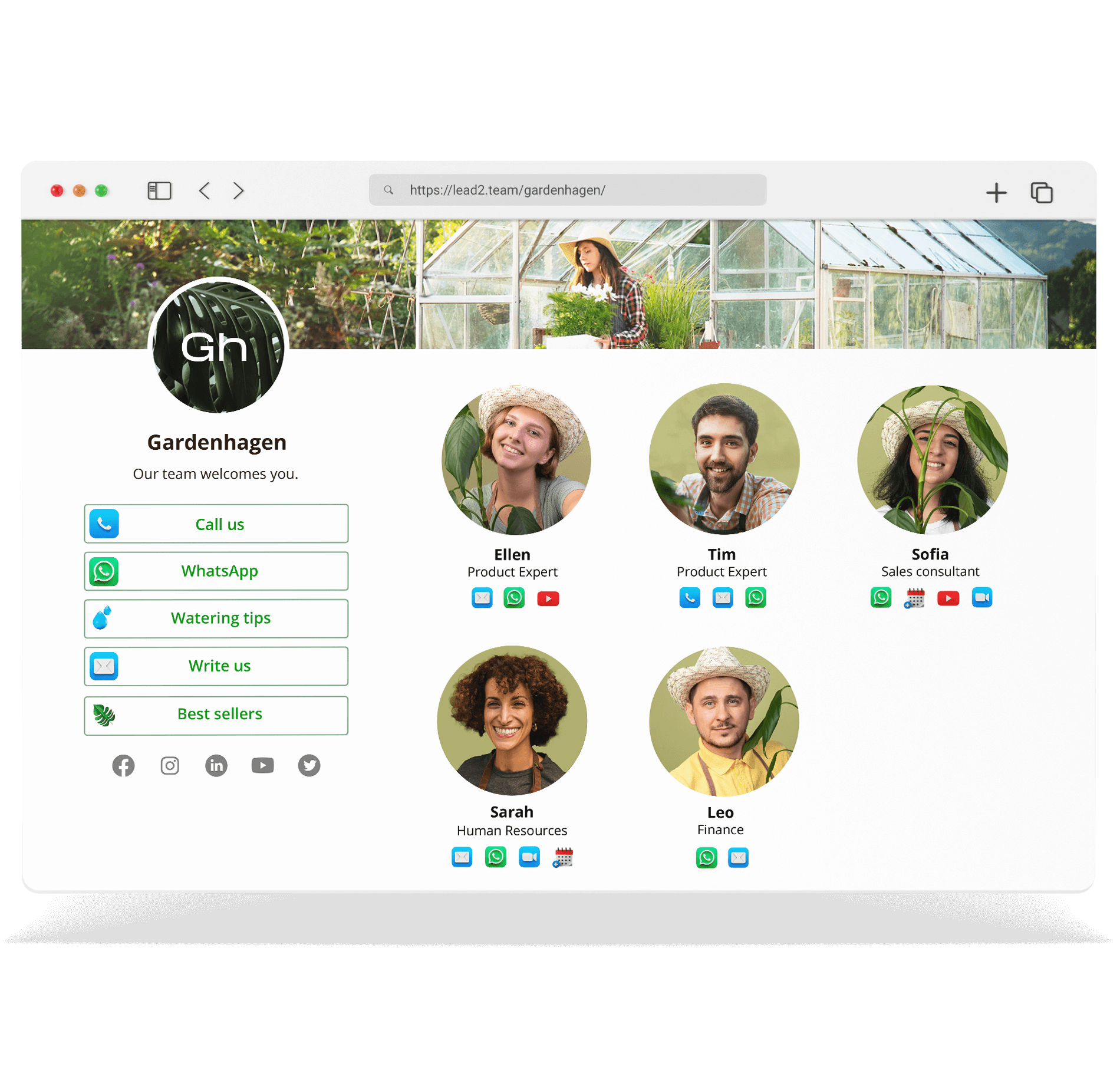


Custom fields allow you to add additional information to the cards and use them as dynamic tags in the templates.
How dynamic tags work
When you use {{email}} in a Template:
- On Mary's card → show maria@empresa.com
- On Carlos' card → show carlos@empresa.com
If you update the email in a person's file, the connector is automatically updated.
Tags available by default
| Tag | Field | Example |
|---|---|---|
| {{email}} | maria@empresa.com | |
| {{phone}} | Phone | +34 612 345 678 |
| {{linkedin}} | linkedin.com/in/maria |
Custom fields
You can create custom fields and use them as dynamic tags. For example:
| Custom field | Tag | Example |
|---|---|---|
| Address | {{address}} | C/ Gran Vía 123, Madrid |
| Switchboard | {{centralita}} | +34 91 234 56 78 |
| Geographical area | {{zone}} | Northern Region |
How to use tags
- Create or edit a Template
- Add a connector (e.g. Email)
- In the value field, type the tag: {{email}}
- Save the Template
⚠️ **Important:** Tags only work in Templates. If you use {{email}} in an individual connector, it will be displayed literally as «{{email}}».
Common errors
| Error | Result | Solution |
|---|---|---|
| Type {email}} instead of {{email}} | Not replaced | Use double key: {{email}} |
| Empty field on the tab | Does not show anything | Fill in the field on the person's card |
| Use tag on individual connector | Displays the literal tag | Use tags only in Templates |
| Typographical error: {{emal}} | Not recognized | Verify spelling |
💡 **Tip:** Before assigning a Template to your entire team, test it with a single card to verify that the tags are replaced correctly.
