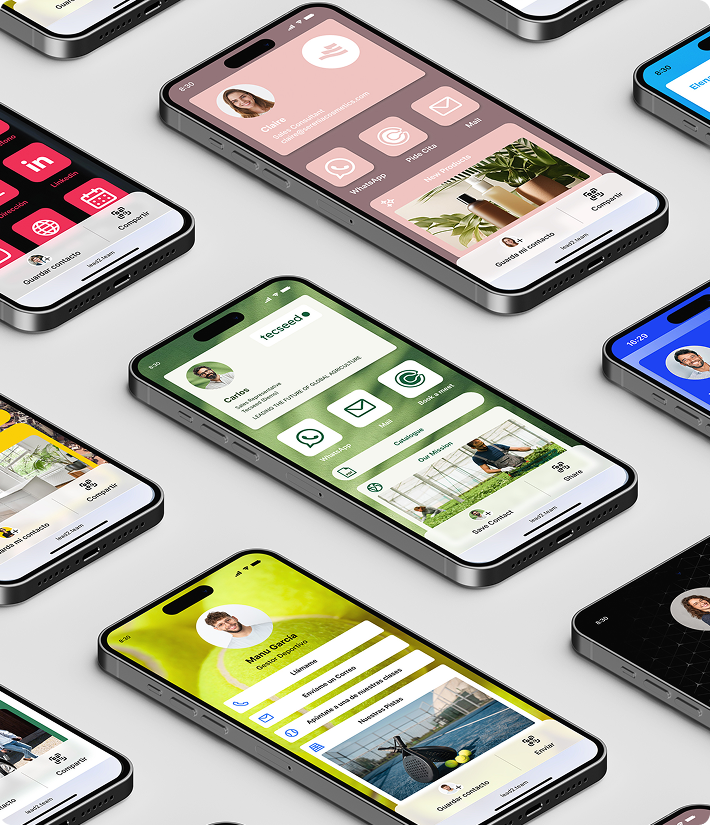

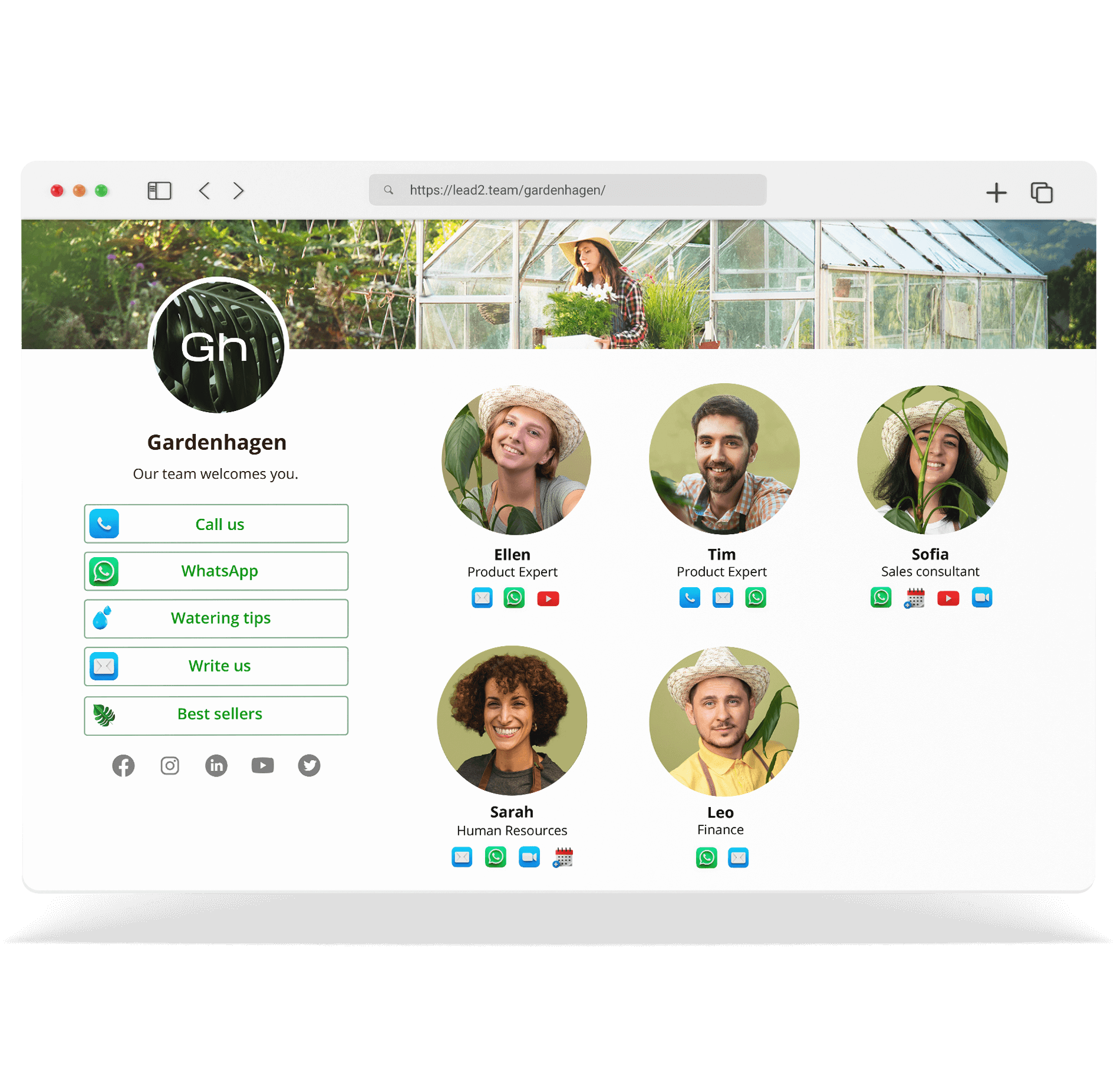


Assign a different visual design and language to each card. Ideal for companies with multiple brands or international teams.
⚠️ **Important:** You need Team Manager activated and designs previously created.
Assign design per card
- Go to Cards > Excel View
- Click on the column Design of the card
- Select the design from the drop-down menu
- Repeat for each card
Assign language per card
- In Excel View, locate the column Language
- Click in the language column of the card
- Select the language (Spanish, English, French, German, French, German...)
The change is applied immediately.
💡 **Tip:** The language affects the interface texts (buttons, labels), not the content you write.
Example: multinational company
| Team | Design | Language |
|---|---|---|
| Madrid | Corporate colors Spain | Spanish |
| Paris | Corporate colors France | French |
| Berlin | Corporate colors Germany | German |