


QR codes for business cards: how to create and customize them
A QR code takes less than two seconds to scan. In that time, the person in front of you goes from knowing nothing about you to having access to your phone, email, LinkedIn, corporate website and even your product catalog. No paper card can compete with that.
If you want to know how to create a QR that really works - and doesn't become obsolete after three months - read on. I explain the options, the mistakes to avoid and how to get the most out of it.
Why use a QR code on your business card?
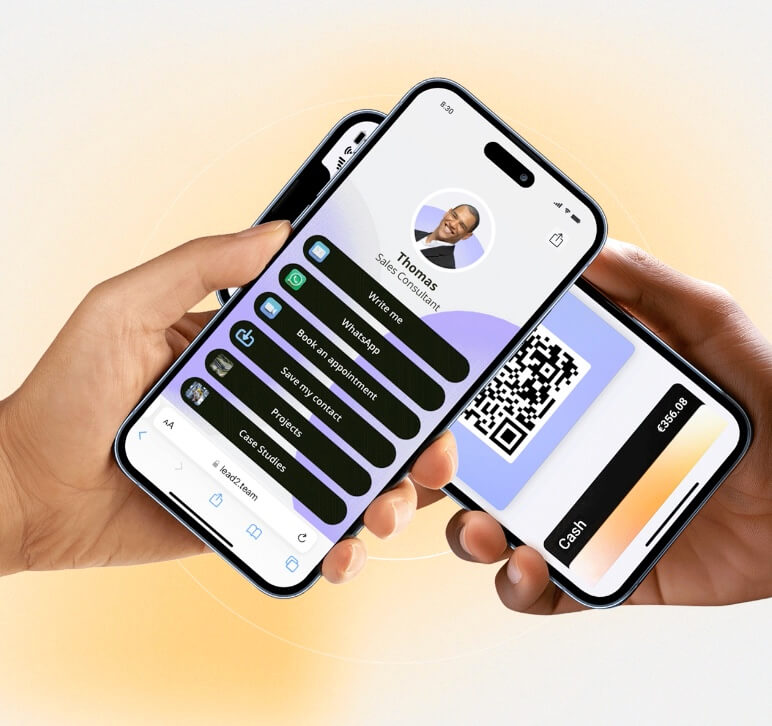
The QR is the bridge between the physical and the digital. Whether printed on a paper card, on a trade show roll-up or in a sales presentation, a business card QR allows anyone to access your complete contact information by simply pointing a cell phone camera.
Three reasons why it works so well:
- It is universal. All modern smartphones - iPhone and Android - read QR codes natively with the camera, without the need to install any app.
- It is fast. A 1-2 second scan replaces the process of dictating a phone, spelling out an email or searching for someone on LinkedIn.
- It is frictionless. The receiver does not need to do anything special. Point, scan and access. It's as simple as that.
Since the pandemic, the use of QR codes has skyrocketed and is now part of most people's daily routine. Using it in your digital business card is to take advantage of an existing habit.
Static QR vs. dynamic QR: which one do you need?
Not all QR codes work the same. Before creating one, you need to understand the difference between these two types, because the choice completely changes the experience.
Limitations of static QR (vCard)
A static QR encodes the information directly within the code itself. The most common example is the vCard QR: when scanned, it downloads a contact card with your name, phone and email.
The problem? If you change your phone number, job title or company, the QR is no longer valid. You have to generate a new one and reprint all the material where you put it. For a professional who updates his or her data frequently, this is a constant headache.
Also, the amount of information you can cram into a static QR is limited. The more data you encode, the denser the QR pattern becomes and the harder it is to scan, especially at small sizes.
Advantages of Dynamic QR (Digital Card)
A dynamic QR does not store your data directly. Instead, it points to a URL - your digital profile - that you can update as often as you need without the code changing.
This means that:
- It never expires. You change your phone, update your LinkedIn or upload a new catalog, and the QR remains the same.
- It is always up to date. The receiver always sees the most recent version of your information.
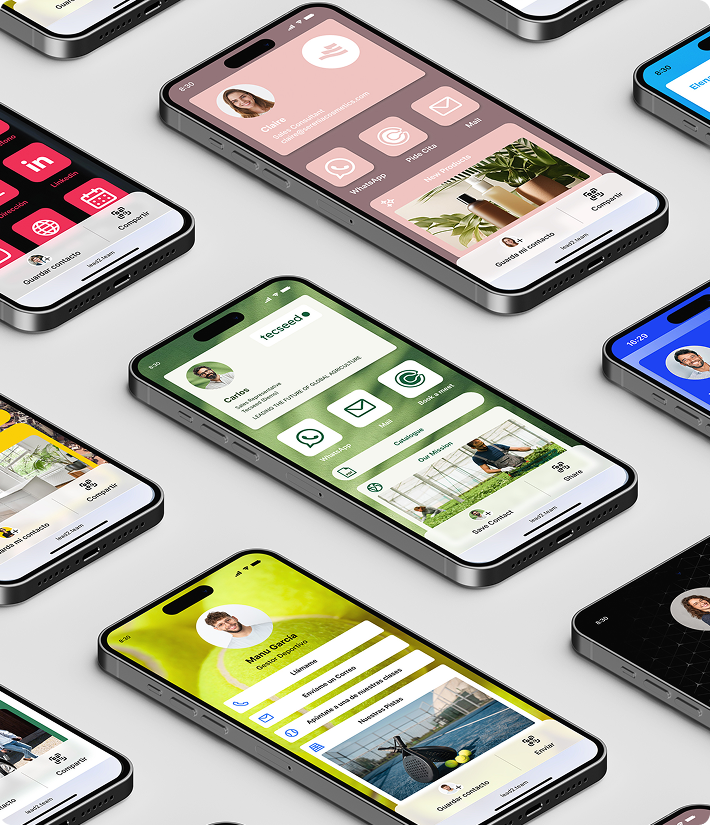
- It allows for much more information. Your digital profile can include phone, email, social networks, PDF documents, videos, location on Google Maps and much more. All that with a single lightweight and easy to scan QR.
The conclusion is clear: if you want a professional QR for your business card, you need a dynamic QR linked to a digital business card.
How to create a QR code for your business card
You have two ways to generate your QR. One generic and one integrated. The difference in convenience and functionality is remarkable.
Option 1: Generic QR Generator + link
You can use any free QR generator (there are dozens online) and create a code that points to the URL of your digital card. It's fast and it works, but it has limitations:
- You will have to manage the QR and digital card separately.
- If you change the URL of your card, the QR stops working.
- You cannot generate QRs for an entire team centrally.
This option may work for an individual professional, but it falls short when you need to scale up to a team.
Option 2: QR integrated into your digital card management platform
The most practical option is to use a platform like Lead2Team that automatically generates the QR linked to each person's digital profile. Here's how it works:
- Create the digital card with the data and connectors you need.
- The platform automatically generates a unique QR for that person.
- Download the QR at SVG format, recommended for large size printing).
- If you update the card data, the QR still points to the updated profile. There is no need to regenerate anything.
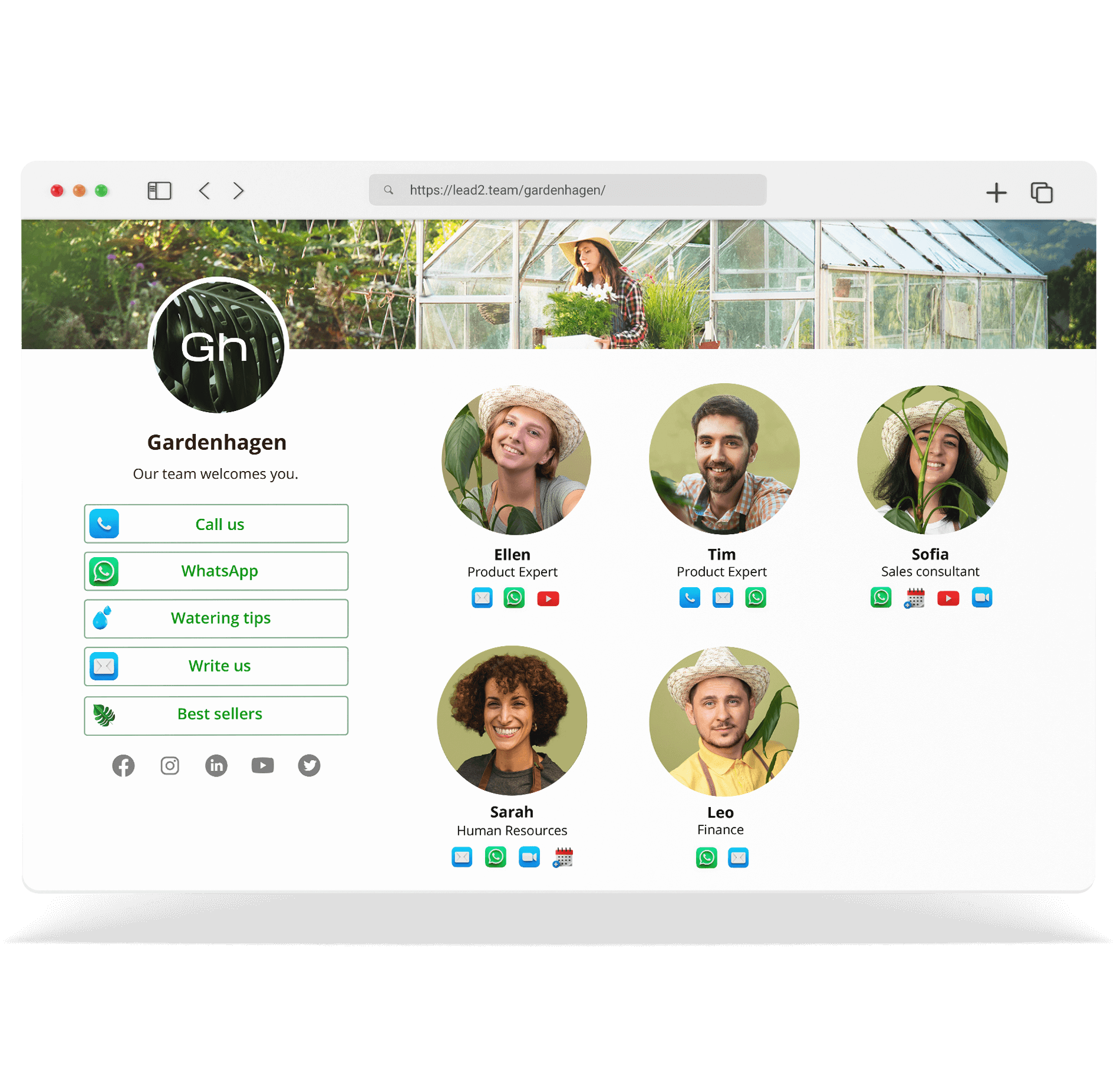
In addition, if you manage a teamyou can unlimited generation of individualized QR codes for each member from a single panel. This is especially useful when you need to prepare material for fairs, events or any physical support.
How to customize your QR code
A QR does not have to be a black and white square with no soul. Personalizing it reinforces your brand and increases the trust of those who scan it.
Corporate colors and branding
Replace black with your main corporate color. The only rule: keep enough contrast with the background. A dark blue QR on a white background works perfectly; a light yellow QR on a white background does not.
- Always test before printing. Scan the QR from multiple devices and at different distances to make sure it works.
Where to use the QR on your business card
The versatility of QR is one of its greatest advantages. These are the places where it generates more impact:
- Paper card: yes, you can combine paper and QR. Print the QR on your classic paper card and get the best of both worlds: the tangibility of paper and the depth of the digital profile. Find out more in our comparison of digital vs. paper cards.
- Presentations and slides: add your QR on the last slide for attendees to save your contact at the end.
- Stands and roll-ups for trade fairs: print the QR in large size. Each visitor who scans it leaves his data in your contact form.
- Email signature: include the QR as an image in your email signature to turn every email into a networking opportunity.
- Badges and event accreditations: link the QR of your card to the event accreditation.
- Promotional materials: flyers, catalogs, brochures... any physical support where you want to offer quick access to your contact.
Common mistakes with business card QRs
Avoid these bugs that ruin the experience:
- QR too small. The minimum recommended size for a QR to scan smoothly is 2×2 cm on printed materials. Below that, reading becomes more complicated.
- Static QR with outdated data. If you have changed your phone or company and are still handing out cards with an old static QR, you are giving out the wrong information. Use a dynamic QR.
- Low color contrast. A light gray QR on a white background is almost invisible to the camera. Maintain a high contrast between the QR and the background.
- QR without context. If someone sees a QR without explanatory text, they don't know what will happen when they scan it. Always add a supporting text: «Scan to save my contact».
- Do not test before printing. It seems obvious, but many companies print hundreds of cards without verifying that the QR works. Always scan from multiple devices before sending to the printer.
Frequently Asked Questions
How do I create a QR code for my business card?
The most efficient way is to use a digital card platform that generates the QR automatically linked to your profile. In Lead2Team, the QR is created when you create the card and you can download it in PNG, JPG or SVG from the Share > QR Codes section.
What is the difference between a static QR and a dynamic QR?
Static QR encodes the data directly in the code pattern (if you change anything, you need a new QR). The dynamic QR points to a URL that you can freely update without modifying the code. For business cards, dynamic is clearly superior.
What happens if I change my data, do I have to create a new QR?
Not if you use a dynamic QR. As it is linked to your digital profile, just update the data on the platform and the QR will continue to show the correct information. You do not need to reprint or regenerate anything.
Where can I put my business card QR?
In virtually any medium: paper cards, presentations, trade show booths, email signatures, badges, flyers, catalogs and any promotional material. QR works equally well in print and digital format.
What is the minimum size that a QR code must be to work?
For printed materials, the minimum recommended size is 2×2 cm. For digital use (email signature, web), between 100 and 150 pixels wide. For large formats such as roll-ups or posters, scale proportionally and use SVG format for maximum quality.
Is a QR better to a vCard or a digital profile?
A QR to digital profile is clearly better. The vCard has limited and static information. A digital profile includes all your information, is updated in real time and also allows you to capture leads through the integrated contact form.
Stop handing out QRs that expire. Create your digital card with Lead2Team and generates a professional and always up-to-date QR for each person in your team.