


7 ways to share your digital business card: link, QR, Wallet and more
Imagine you've just met a potential client at a trade show. Instead of digging in your pocket for a paper card that will probably end up forgotten in a drawer, you pull out your cell phone and in three seconds that person already has all your contact information saved in their address book. That's the real advantage of a digital business card: does not depend on a single format or a single moment. It adapts to you, the context and the channel.
But to get the most out of it, you need to know all the ways you can share it. And no, it's not just about sending a link via WhatsApp. In this article we show you 7 methods to share your digital business card covering everything from face-to-face meetings to 100 % online communication.
Why it matters how you share your digital card
The best card in the world is useless if you don't share it. And how you share it directly influences how many contacts actually save your information.
A paper card has only one form of distribution: hand-delivering it to someone. A digital card, can instead be sent by multiple channels, adapting to the context of each interaction. In a face-to-face meeting you're not going to send an email; after a video call you can't hand over a physical card. Versatility is what makes the difference.
The key is to choose the right method for each situation. Let's take a look at the 7 options available.
1. Custom link: share your card with a URL
It is the most versatile form and probably the one you will use the most. Your digital card has a Unique and permanent URL which always shows the most updated version of your profile. If you change your job title, phone number or company, the link remains the same; what changes is the content.
With platforms like Lead2Team, the link can be customized with your company domain (e.g., cards.yourcompany.com/ana-garcia), which reinforces the brand image.
Where to use your personalized link
The possibilities are virtually unlimited:
- WhatsApp and messaging: paste the link into any conversation and an automatic preview is generated.
- Email: include it in the body of the email or in your signature.
- LinkedIn: share it in publications or direct messages.
- Instagram: add it to your bio or share it by direct message.
- SMS: send it as a conventional text message.
- Any digital platform: the link works in all browsers, without apps or downloads.
Tips for an effective link
- Use a custom domain to convey professionalism.
- Share the link with a brief context message: «I leave you my digital card so that you have my contact details».
- Place the link on the social profiles where you want to generate more contacts.
2. QR Code: perfect for face-to-face meetings
The QR code of your digital card is the bridge between the physical and digital world. The other person only has to scan with their mobile camera to access your complete profile instantly.
In Lead2Team you can generate unlimited QR codes for each team member and download them in SVG format, ideal for large size printing.
How to show your QR in person
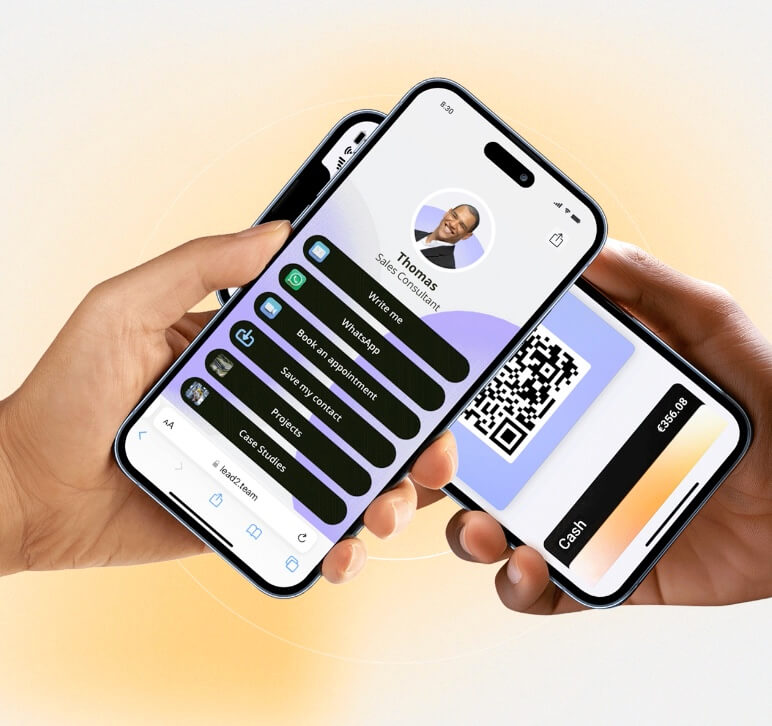
At a meeting or event, the fastest way is to open your card on your cell phone and display the QR directly on the screen. If you have it stored in Apple Wallet or Google Wallet, access is even more immediate: one tap and you're done.
Where to print your QR for maximum visibility
- Flyers and catalogs of product.
- Stands for fairs and events.
- Last slide of presentations.
- Badges or accreditations at congresses.
- Paper business cards as a complement (so you integrate the physical with the digital).
3. Apple Wallet and Google Wallet: your card always on your phone
This is a favorite option for frequent networkers. By adding your digital card to the Wallet app on your iPhone or Android device, you have it always accessible without opening any other application.
Here's how it works: you open Wallet, select your card and the other person scans the QR that appears on the screen. All in seconds, with no friction. And the best part: works without internet connection, because the QR is stored locally on your cell phone.
If you want to know the step-by-step process, we have a complete guide on how to add your card to Apple Wallet and Google Wallet.
4. Email signature: share your card in every email you send.
If you are one of those who send dozens of emails a day, this is a gold mine that many people do not take advantage of. With platforms such as Lead2Team, you can generate a email signature image with your QR code embedded in it to be inserted in Gmail, Outlook or any other email client.
Every email you send becomes a silent opportunity to share your card. No extra effort, without seeming intrusive. The recipient sees your signature, scans the QR if interested and accesses all your contact information.
To set it up you just need to download the signature image from the platform and insert it in the signature settings of your email provider. Find out more in our digital card and QR email signature guide.
5. WhatsApp and messaging: sharing via chat
After a phone call, a virtual meeting or a first contact on social networks, the most natural thing to do is to send your card through the channel where you are already chatting. Copy the link of your digital card and paste it in a chat room. WhatsApp, Telegram or SMS is a matter of seconds.
In WhatsApp, in addition, the link generates a automatic preview with your name, photo and description, which generates confidence and a professional appearance.
Practical tip: save your link as a quick reply in WhatsApp Business or as a keyboard shortcut on your mobile to share it with a single tap.
6. Social networks: add your card to your profile
Social networks are today's professional showcase par excellence. Adding the link of your digital card to your profile amplifies your reach effortlessly.
- LinkedIn: add it in the contact details section or share it as a post. When someone connects you, send them your card by direct message.
- Instagram: put it in your bio (especially useful if you are a freelancer). Share the link in Stories with the link function.
- Twitter/X: include it in your bio or in a pinned tweet.
- TikTok: add it to your bio if you generate professional content.
The digital card functions as a central hub where all your professional information comes together. Instead of sharing your phone, email and LinkedIn separately, you share a single link that contains everything.
7. Presentations and events: integrate your QR in slides
If you give speeches, trainings or business presentations, your last slide should include the QR code of your digital badge. Attendees scan directly from their seat and have your contact details instantly.
It works just as well in:
- Trade show booth displays.
- Printed materials of presentations and workshops.
- Corporate videos (adds the QR as an overlay in the last seconds).
- Webinars: share the link in the chat when you say goodbye.
At Lead2Team, being able to download the QR in SVG format, the quality remains perfect even on large screens or large format printouts.
Comparative table: when to use each method
| Method | Ideal context | Facility | Scope |
|---|---|---|---|
| Customized link | Digital communication, networks, email | Very easy | Unlimited |
| QR Code | Face-to-face events, printed materials | Easy | Face-to-face + printed |
| Apple/Google Wallet | Face-to-face meetings, daily networking | Very easy | On-site |
| Email signature | E-mail communication | Configure once | Every email sent |
| WhatsApp/messaging | Post-meeting follow-up, informal contact | Very easy | Direct contacts |
| Social networks | Personal branding, expand professional network | Easy | Followers + network |
| Presentations/events | Presentations, trade fairs, training | Easy | Audience of the event |
The key is not to choose a single form, but rather to combine them according to the moment. The same digital card can be shared by Wallet in a face-to-face meeting, by WhatsApp in subsequent follow-up and by email signature in regular communication.
If you still do not have your digital card created, create it for free at Lead2Team. And for a complete overview of what they are and how they work, check our complete guide to digital business cards.
Frequently Asked Questions
How do I share my digital business card?
You can share it in multiple ways: sending your personalized link via WhatsApp, email or social media; showing your QR code in person; from Apple Wallet or Google Wallet; or including the QR in your email signature. The best option depends on the context of the interaction.
Can I share my digital card via WhatsApp?
Yes, it's as simple as copying the link from your card and pasting it into any WhatsApp conversation. The link generates an automatic preview with your name and photo, and the other person accesses your digital profile with a single tap.
Can the digital card be shared without internet?
Yes, if you have your card stored in Apple Wallet or Google Wallet, you can display the QR on screen without an internet connection. The other person will need a connection to open your full profile, but the QR is always displayed.
Lead2Team's digital card also has an integrated share the QR offline.
Does the other person need an app to receive my card?
No. Your digital card opens in the mobile browser, just like a normal web page. The recipient does not need to download any application or create an account on any platform. He just has to open the link or scan your QR.
How do I share my digital card in a face-to-face meeting?
The fastest ways are: open your Wallet and show the QR to be scanned, or show the QR directly from your mobile screen. If you have an NFC card, you can also hold it up to the other person's cell phone to give them instant access to your digital profile.
Can I share my digital card on LinkedIn?
Yes, you can add the link to your LinkedIn profile in the contact details section, share it as a post or send it by direct message. LinkedIn automatically generates a preview of the link.
What is the best way to share a digital business card?
There is no single best way: it depends on the context. For face-to-face meetings, the Wallet or QR is the fastest. For online communication, the link shared via chat or email is the most practical. The ideal is to combine several forms to cover all scenarios.