


Email signature with digital card: how to integrate your QR in Gmail and Outlook
Think about how many emails you send every day. Now imagine if every one of those emails worked for you as a networking tool, without you having to do anything at all. That's exactly what you achieve when you include your digital business card in the email signature: you turn every message into a contact opportunity.
In this guide I explain how to add a QR code or a direct link to your digital card in your Gmail and Outlook signature, step by step and in less than five minutes.
Why include your digital card in your email signature?
The average professional sends between 30 and 50 emails a day. If your company has a team of 20 people, we are talking about more than 600 emails a day going out with your brand. Each of those emails can have your email signature integrated with digital card and QR, which exponentially multiplies your visibility without any additional effort.
Passive networking: your card works for you
Unlike other ways of sharing your digital card - such as sending the link manually via WhatsApp or LinkedIn - the email signature works in automatic mode. Once set up, every email you send will include your QR or link without you having to remember it. It's passive networking at its purest.
The recipient does not need to ask for your details: simply scan the QR or click on the link and access all your updated contact information. Phone, email, LinkedIn, corporate website, catalog... all in one step.
Benefits for teams and companies
When it comes to equipment, the impact is multiplied:
- Brand consistency: all team signatures follow the same professional format.
- Information always up to date: if you change your phone or charge, you update your card and the QR signature still points to the same profile, now with the new data. There is no need to reconfigure anything.
- Lead acquisition: every person who scans your QR and clicks «Save contact» will leave their details on your platform. It's a way to recruit that many companies don't even have on their radar.
Option 1: Add a QR code to your email signature
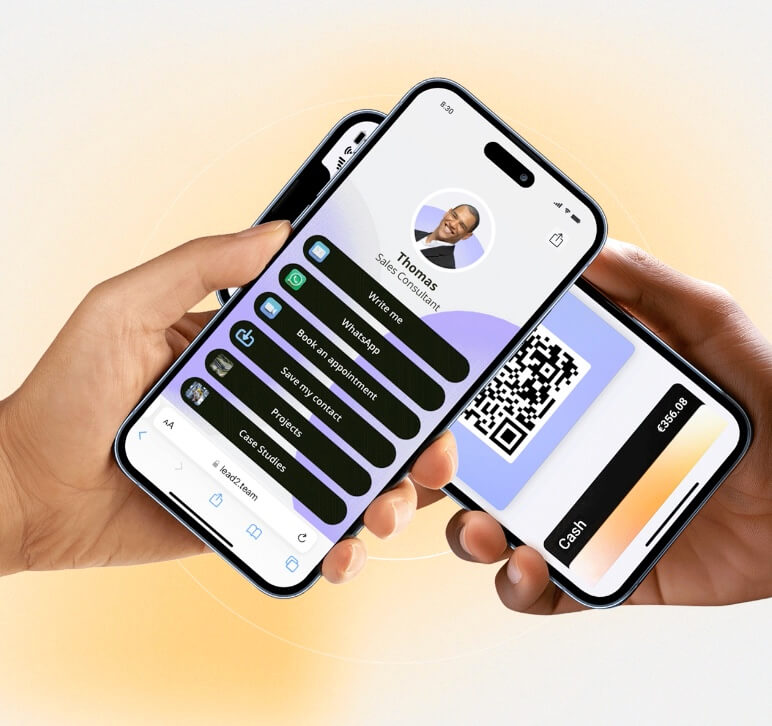
The most visual way to integrate your digital card in the signature is to include an image with your personal QR code. When the recipient scans it with their cell phone camera, they are taken directly to your complete digital profile.
How to get the QR image of your card
If you use Lead2Team, getting your email signature QR is immediate. You have two ways:
- From the administration panel: go to Share > Email Signature, Select a person from the team and download the generated image.
- From the onboarding email: when the administrator sends you the welcome email, it includes the signature image with QR ready for download.
The image that is generated is already designed in a professional format: it includes the QR linked to the digital card, and you only have to copy-paste it directly into the signature.
Recommended size and position
- QR size: between 100 and 150 pixels wide. Enough to scan well without taking up too much space in the signature.
- Position: the QR is on the right and on the left your basic contact information (name, title, phone number).
- Supporting text: add a short phrase like «Scan to save my contact» next to the QR. Many people still don't associate a QR in the signature with a business card, so a little context text goes a long way.
Important: Note that the QR does not work if the recipient reads the email on the same device from which he/she would have to scan it. If someone opens your email on their mobile, they can't scan the QR with that same mobile. Therefore, combining QR + direct link is the best strategy.
Option 2: Add a direct link to your digital card
The alternative (or complement) to QR is to include a direct link to your digital card. This link works on any device - mobile and desktop - and eliminates the scanning limitation.
You can present it as a button or as hyperlinked text. Some options:
- «View my contact card» (with hyperlink to your personal URL)
- «My digital card» (linking directly to the profile)
In Lead2Team, each team member has a personalized and permanent link. If you update your data, the link remains the same: it always shows the most recent version.
The ideal combination is QR + linkQR works when the recipient is on the computer and can scan with the cell phone; the link works when reading the email from the cell phone itself.
How to configure your signature in Gmail step by step
- Open Gmail and click on the icon for Configuration (gear) > View all settings.
- Scroll down to the section Signature.
- Create a new signature or edit the existing one.
- To insert the QR: click on the icon of Insert image (in the signature toolbar), upload the QR image you downloaded and adjust the size.
- To add the link: select the anchor text (e.g. «My digital card»), click on the icon of Link and paste the URL of your card.
- Click on Save changes at the bottom of the page.
Tip: send a test email to yourself and see how it looks on both mobile and desktop before signing off.
How to configure your signature in Outlook step by step
Outlook desktop (Windows/Mac)
- Go to File > Options > Mail > Signatures (Windows) or Outlook > Preferences > Signatures (Mac).
- Create a new signature or select the one you want to edit.
- To insert the QR: click on the icon of Image, If you have a QR file, find the QR file on your computer and insert it.
- To add the link: select the text, click on the icon of Hyperlink and paste the URL of your digital card.
- Click on Accept and assigns the signature to new messages and replies.
Outlook Web (Office 365)
- Click on the Configuration (gear) > View all Outlook settings.
- Go to Mail > Compose and reply.
- In the signature section, use the toolbar to insert the QR image and link.
- Mark the signature as default for new messages and replies.
- Click on Save.
Tips for a professional email signature with digital card
- Do not overload the signature. Name, title, phone, QR and link. You don't need more. An overloaded signature generates the opposite effect: nobody reads it.
- Use corporate colors. The signature must be consistent with the visual identity of your company.
- Test on mobile. More than 60% of emails are read from a smartphone. If the signature doesn't look good on mobile, you have a problem.
- Standardize in the team. If you manage a team, make sure everyone uses the same signature format. With platforms such as Lead2Team you can generate the QR signature for each person on the team from a single panel and distribute it through the
- Always combine QR + link. As we have seen, the QR does not work when the email is read on mobile. The link covers that situation. Together, they cover 100% of the scenarios.
Frequently Asked Questions
How do I add a QR to my email signature?
Download the image of the QR linked to your digital card (in Lead2Team you can find it at Share > Email Signature). Then insert it as an image in the signature settings of your email client (Gmail, Outlook or other). The process is the same as inserting any image in the signature.
Is it possible to put a QR code in the Gmail signature?
Yes. Gmail allows you to insert images in your signature from Configuration > View all settings > Signature. Just upload the QR image using the insert image button on the toolbar.
Does the QR work in the Outlook signature?
Yes, both in Outlook Desktop and Outlook Web (Office 365). In both cases you can insert an image in the signature. The QR works exactly the same as in Gmail.
What size should the QR in the email signature be?
The recommended size is between 100 and 150 pixels wide. This is enough to scan correctly without taking up excessive space in the signature. Avoid too small QR (below 80 px) because they can cause reading problems.
Does the QR look good in emails from mobile?
Yes, the QR image is displayed correctly on mobile. However, the receiver will not be able to scan it from that same device (it would need a second mobile). That is why it is recommended to also include a direct link to your digital card as a complement.
Can I use a link instead of QR in my email signature?
Of course. In fact, it is ideal to use both. The direct link works on all devices without scanning. You can include it as hyperlinked text (e.g. «View my contact card») and supplement it with the QR for those who prefer to scan.
Every email you send can be a networking opportunity. Create your digital card with Lead2Team and add your QR to the email signature in less than five minutes. Your card is always up to date, in every email you send.