


How to add your digital card to Apple Wallet and Google Wallet
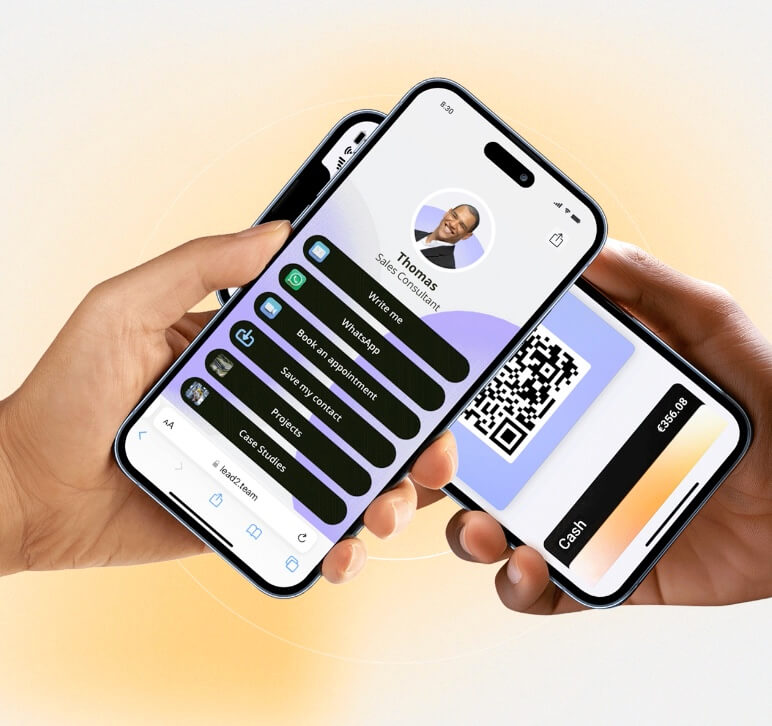
You're at a networking event, someone asks you for your contact details and instead of reaching for a paper card, you unlock your phone, open Wallet with a tap and show your QR. Within three seconds the other person has scanned and has your complete profile saved. No apps, no searching for links, no friction.
Save your digital business card in Apple Wallet or Google Wallet is probably the fastest and most convenient way to share your business information in person. In this guide we explain how to do it step by step, what you need and why it is worth it.
Why save your digital business card in Wallet?
Carrying your digital card in your mobile Wallet is not just a matter of convenience. It's a practical advantage with real benefits:
- Instant access. No need to open an app, search for a link or remember a URL. Your card is in Wallet, on the same level as your boarding or payment cards.
- It works without internet connection. The QR code of your card is stored locally on your mobile, so you can show it even if you don't have coverage or wifi. The other person will need a connection to open your profile, but not you to show the QR.
- Always with you. Where your cell phone goes, your card goes. There's no chance of leaving it at the office or running out of units.
- Professional image. Sharing your contact from Wallet conveys agility and modernity. In professional environments, that first impression counts.
It's the ideal way to have your card ready for spontaneous networking: that meeting in the elevator, the coffee chat after a conference or the unexpected contact on a flight.
How to add your digital card to Apple Wallet (iPhone)
The process is fast and you don't need any technical knowledge.
Requirements for Apple Wallet
- iPhone 6s or later with iOS 14 or higher.
- App Wallet installed (comes preinstalled on all iPhones).
- Your digital card created on a compatible platform such as Lead2Team.
Step by step
- Enter the Lead2Team platform from your cell phone or computer. Go to the Share > Walllet section.
- Click on the «Download iPhone Wallet» button. A preview of your card in Wallet format will open.
- Confirm by clicking «Add».» in the upper right corner.
- Ready. Your card appears in the Wallet app along with your payment cards, tickets and passes.
To access it quickly, you can use the double click on the side button from the iPhone (the same gesture as for Apple Pay) or open Wallet from the Control Center.
Note: The platform is accessible from mobile and desktop, so you can manage your card and download the Wallet from any device.
How to add your digital card to Google Wallet (Android)
The process is just as simple on Android.
Requirements for Google Wallet
- Android device with Google Wallet installed (available on Google Play Store).
- Android 5.0 (Lollipop) or higher.
- Your digital card created on a compatible platform such as Lead2Team.
Step by step
- Enter the Lead2Team platform from your cell phone or computer. Go to the Share > Walllet section.
- Click «Download to Wallet Android». You will find this option inside your digital card on the platform. The Google Wallet app will open showing a preview of your digital card.
- Confirm by clicking «Save». Your card is stored in Google Wallet.
- Access when you need it from the Google Wallet app or from your device's shortcuts.
On many Android devices you can set up a shortcut to Google Wallet on the home screen for even faster access.
What if you manage a team? Sending cards by email
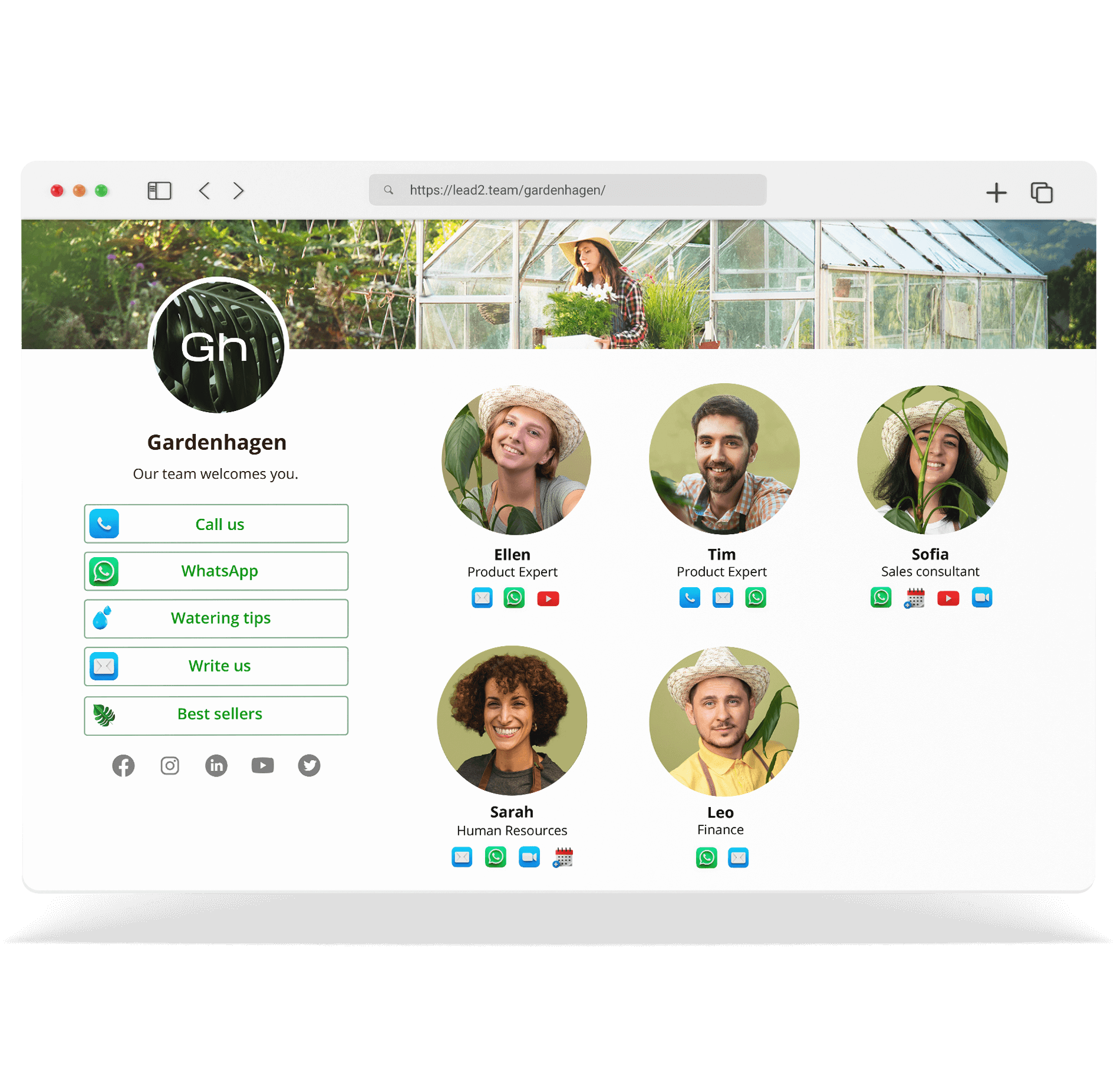
If you are in charge of a team, Lead2Team offers an additional functionality: you can send the digital card to each employee by email with all available formats at once.
The employee receives an email with direct access to their card in link format, Wallet download (Apple and Android), email signature with QR and more. This way each team member can choose the format they prefer without you having to explain anything.
It is especially useful during the onboarding of new employees or when updating cards for an entire department.
How to share your card from Wallet in person
Once you have your card in Wallet, sharing it is a matter of seconds:
- Open Wallet on your mobile (iPhone or Android).
- Select your digital card among your saved passes.
- Displays QR code that appears on the card.
- The other person scans with your cell phone camera.
- Your complete digital profile opens in the other person's browser.
- Click «Save contact».» to have your data downloaded to your address book as a vCard.
The whole exchange happens in less than 10 seconds. The other person does not need to have any app installed: your profile opens in their browser just like a normal web page.
It is comparable in speed to the «tap» of an NFC card, with the advantage that you don't need to carry a physical card with you. If you also have a Lead2Team NFC card, you have both options covered for any situation.
Does the card in Wallet update itself?
This is one of the most frequently asked questions, and the answer is: yes, in practice it works as if it were updating itself.
The QR stored in your Wallet points to the URL of your digital profile. This URL is permanent and does not change. What does change is the content of the profile: if you update your job title, phone, email or any other data in the Lead2Team platform, the next person who scans your QR will see the most recent version of your card, without you having to do anything in Wallet.
That is: you don't need to delete and re-add the card every time you update a piece of data. The QR remains the same; the profile it points to is always up to date.
Learn about the different ways to share your digital card to know when to use Wallet and when to use other methods such as the link or email signature.
Frequently Asked Questions
Can I save my business card in Apple Wallet?
Yes, if your digital card is created on a compatible platform such as Lead2Team, you can add it to Apple Wallet from the platform (accessible from mobile or PC). Once added, you access it just like any other Wallet pass.
How do I add my digital card to Google Wallet?
Access your digital card on the Lead2Team platform (from mobile or PC), click «Download to Wallet Android» and confirm in Google Wallet. Your card is saved and accessible at any time.
Does it work on all iPhones and Android?
On iPhone, Apple Wallet is available from iPhone 6s with iOS 14 or higher. On Android, you need a device with Android 5.0 or higher and the Google Wallet app installed. The vast majority of current cell phones meet these requirements.
Does the card in Wallet update automatically?
The QR stored in Wallet points to your online digital profile, which always shows the most recent version of your data. If you change your job title, phone number or company, you don't need to do anything in Wallet: whoever scans your QR will see the updated data automatically.
Do I need an internet connection to show my card from Wallet?
No. The QR is stored locally on your mobile, so you can show it offline. The other person will need a connection to open your complete digital profile, but you can show the QR at any time.
What does the other person see when I show them my card from Wallet?
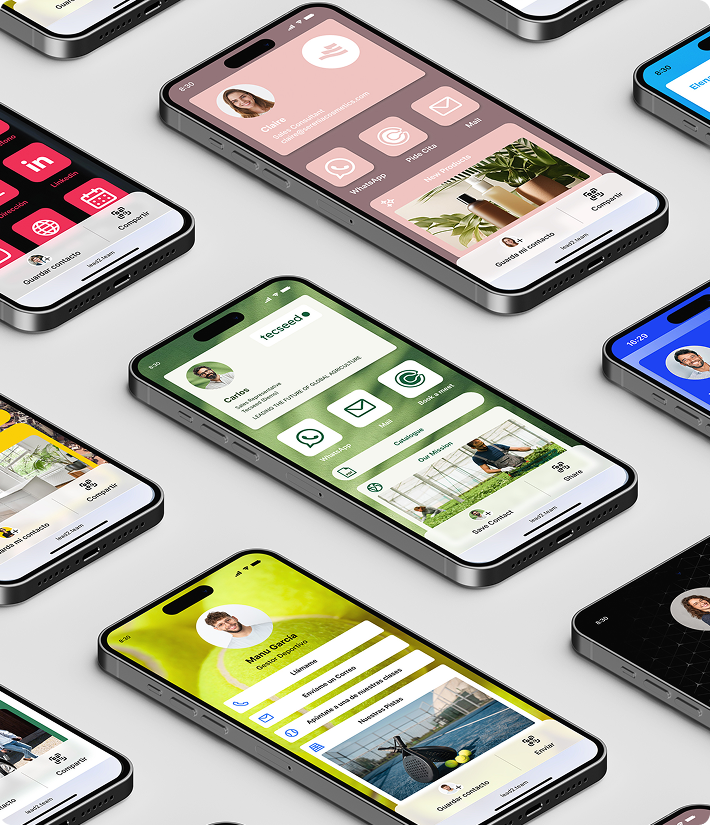
Scanning your QR opens your digital profile in your browser: a web page with your contact details, photo, social media links, documents and any other connectors you have set up. From there you can save your contact directly to your address book with a tap.
If you want to take the first step, check out our guide about how to create your digital business card step by step and discover how easy it is to get your card ready for Wallet in minutes.
You can also explore the uses of QR code on business cards to take advantage of it in other contexts.